Wellys Dev
-
Developing in C on the RP2040: First
Where I explain the issues which impact developing C/C++ code on the RP2040.
Sources
- Guide: Getting Started with Pico
- Raspberry Pi Pico Pinout
- Pico SDK Documentation
- GitHub: pico-sdk
- GitHub: pico-examples
Introduction
There are three fundamental steps one must take to fully develop C/C++ code on the RP2040. Both the Raspberry Pi “Getting Started with Pico” known as the Guide from here on and this blog utilize this approach:
- Install the tool chain necessary to cross-compile C/C++ and link code for the RP2040 on the platform of choice.
- Test #1 using the Raspberry Pi Pico Github code using the pico-sdk and pico-examples.
- Advance the ability to debug by adding a hardware debugger in the form of the Picoprobe and gdb.
For each of the platforms, there is a level of complexity to accomplish each step. Its important to understand that the tools that exist to accomplish cross-compiling and linking C/C++ for an embedded microcontroller are designed for Linux. Therefore, the closer a system “looks like Linux”, the easier it is to follow the three steps. This isn’t a problem. It is simply something to understand and account for. Specifically, the level of difficulty of the three steps in each operating system is:
-
Developing in C on the RP2040: Windows
Where I begin to develop code in C on the RP2040 in the Windows environment.
Sources
- Raspberry Pi Pico SDK: Raspberry Pi Pico SDK
- Getting Started with Pico
- Raspberry Pi Pico Pinout
- Shawn Hymel on Digikey
- Git Bash Tutorial
Download Sources
Introduction
If you haven’t read it, please read Read This First… before you continue.
As I have said before, I do not like to use VS Code, nor do I believe that it is a good tool for students beginning to learn how to develop embedded C. My approach will be to follow that of Shawn Hymel’s without the VSCode part as well as what has already been published via the Guide. In the place of VS Code, we will use Notepad++.
-
Developing in C on the RP2040: New Project
Where I demonstrate bringing up a new project in C on the PR2040 including embedding project information in the binary.
Sources
- Guide: Getting Started with Pico - Review Chapt 8 and Appendix B
- Raspberry Pi Pico Pinout
- GitHub: PicoTool
Introduction
You have played with the examples the Raspberry Foundation has thoughtfully provided. Now you want to create something on your own! I like the information provided by the Foundation as to how to create a project and how to add easily binary information to the binary code of project. This means you can build a project, write pin information to the binary and then pick up the board weeks(months?) later and determine what is on the board and how to use it.
-
Debugging in C Code on the RP2040: Using gdb - Hints
Where I provide hints on using gdb to debug code on the RP2040 (Pi Pico board).
Sources
- Raspberry Pi Pico SDK: Raspberry Pi Pico SDK
- Raspberry Pi Pico Pinout
- GDB Documentation
- Guide to Faster, Less Frustrating Debugging - Norman Matloff
- gdb Resources
gdb Hints
- gdb recommended in its screen feedback to use “target extended-remote :3333” instead of the Guide’s “target remote localhost:3333”. I found that this seemed to solve some of these inconsistencies, so I updated my instructions. After a bit of reading “extended-remote” does seem to be the right instruction. Note: If using Bloom and avr-gdb, extended doesn’t serve a purpose, use target remote:1442.
- If you find your self executing a lengthy command quite a bit (such as “monitor reset init”), use “define” to create a shorter command for it. If you put it into the .gdbinit file (as I have), it will remember from session to session.
- gdb can be incredibly easy to use. Norman Matloff’s tutorial is great for illustrating the commands needed. I recommend reading and practicing with it, its well worth it!
- Start with using gdb to replace printf statements. Run code, have it stop by using a “breakpoint function name” or “breakpoint line number”, then use “print” or “display” to get the values of variables. This will work the same as inserting print statements, however, it doesn’t affect your code.
- It took me less time to learn gdb, and write these two tutorials than the time I spent attempting to debug Visual Studio Code. Your mileage may vary, however, a simple gdb/code editor setup is fast and easy to learn and use.
- If your code ends, you will see “exit(status=0)….”. To restart the program, simply issue a “mri” (a command from .gdbinit) which will reset the processor. Press “c” and the program will begin running again.
- gdb operates in at least two modes:
- command, indicated by (gdb) prompt. This is where you will enter all of the commands to interact with gdb
- execution, indicated by a lack of a (gdb) prompt. This means the program is running and hitting a breakpoint or watchpoint will return you back to command mode. Or you can hit Ctrl-C which will interrupt the process and put into command mode.
- Enter the command layout src or start by using gdb –tui and the window will divide into two horizontal windows. The top window will show 20 lines of source and the bottom window will continue to be the command window. This is a great way to view a breakpoint. For example, set a breakpoint on a function name, then “n(ext)” through the code to view execution. Once you have entered “n”, you can simply hit the return key and it will advance using the next command.
- Note found elsewhere, I’ll link to it when I find it: “remember to use -g only for the image you pass to gdb, not the firmware you load into the device (if it can grok elf). Also another very critical prerequisite for C programs is -O0 (which is usually default). But if you use -Os or something, you can get very unpredictable debugging results. This btw. makes debugging some code on avrs for example almost impossible, as they often rely on -Os to fit the image in there. But.. it is very possible and comfy to debug simple optimized C programs in assembly, if you know roughly what to expect. Use objdump -dS on the optimized .elf file with debugging info and you’ll roughly see what assembly code was produced for what C code.”
-
Debugging in C Code on the RP2040: Using gdb - Setup
Where I show a simple method of using gdb to debug code on the RP2040 (Pi Pico board).
Sources
- Raspberry Pi Pico SDK: Raspberry Pi Pico SDK
- Raspberry Pi Pico Pinout
- GDB Documentation
- Guide to Faster, Less Frustrating Debugging - Norman Matloff
- gdb Resources
Setup .gdbinit
The Guide recommends at the very least, add “target remote localhost:3333” to your .gdbinit file. To make our edit/compile/link/load round trip easy, I recommend the following for your .gdbinit:
-
Developing in C on the RP2040: Linux
Where I begin to develop code in C on the RP2040.
Sources
- Raspberry Pi Pico SDK: Raspberry Pi Pico SDK
- Raspberry Pi Pico Pinout
- Getting Started with Pico
- Shawn Hymel on Digikey
Introduction
I like using Forth to develop code on embedded microcontrollers, however at times, I’ll have a project that requires a more supportive framework. In this case, C is a superior choice if I need the execution speed of Forth and the framework of microPython. This requires a significant investment in building the tools required and skills to use those tools, to develop in C.
-
Mecrisp-Stellaris Forth: Creating a New UF2
Where I describe how to edit, assemble, link, and UF2 Mecrisp-Stellaris for the RP2040 and specifically, the Adafruit Feather RP2040 and Pico/Pico W.
Sources
Updated
Now that I have gone through over 20 assemble/link/UF2 cycles, I have a better understanding of what needs to be done, specific to macOS Big Sur.
- Follow the comments as to “The process…” particularly as it regards getting macOS to run the ARM toolchain. This has to happen first.
- Reduce the complexity of Mecrisp-Stellaris. Matthias has performed a remarkable job in getting so many processors to run this version of Forth. This achievement needs to be applauded and appreciated. That said, unless you are running a significant number of versions, delete those that you aren’t using. In my case, I used the 128k/128K version to determine what was required for the RP2040. This is my base moving forward. Note In reviewing version 2.6.5, the new model is 128K/128K from Matthias.
- Terry’s directions below (Understatement), however, its even easier. If you have performed point 2, then the solution is simply:
cd mecrisp-stellaris-x.x.x
./release
# put board in USB mode, drag/drop UF2 file and go to work
Really important things to do: (Instructions below)
- Implement Terry’s improvement on Stair-Stepping by adding a CR to the OK prompt.
- Implement Piotr’s improvement on uploading
Understatement
(With apologies to Terry Porter) Terry’s page above as Mecrisp Patching was extremely helpful and contained this nugget. Which is true, however, it takes a little bit of additional work to get there with the RP2040.
-
Mecrisp-Stellaris Forth: RP2040 and Pin Testing
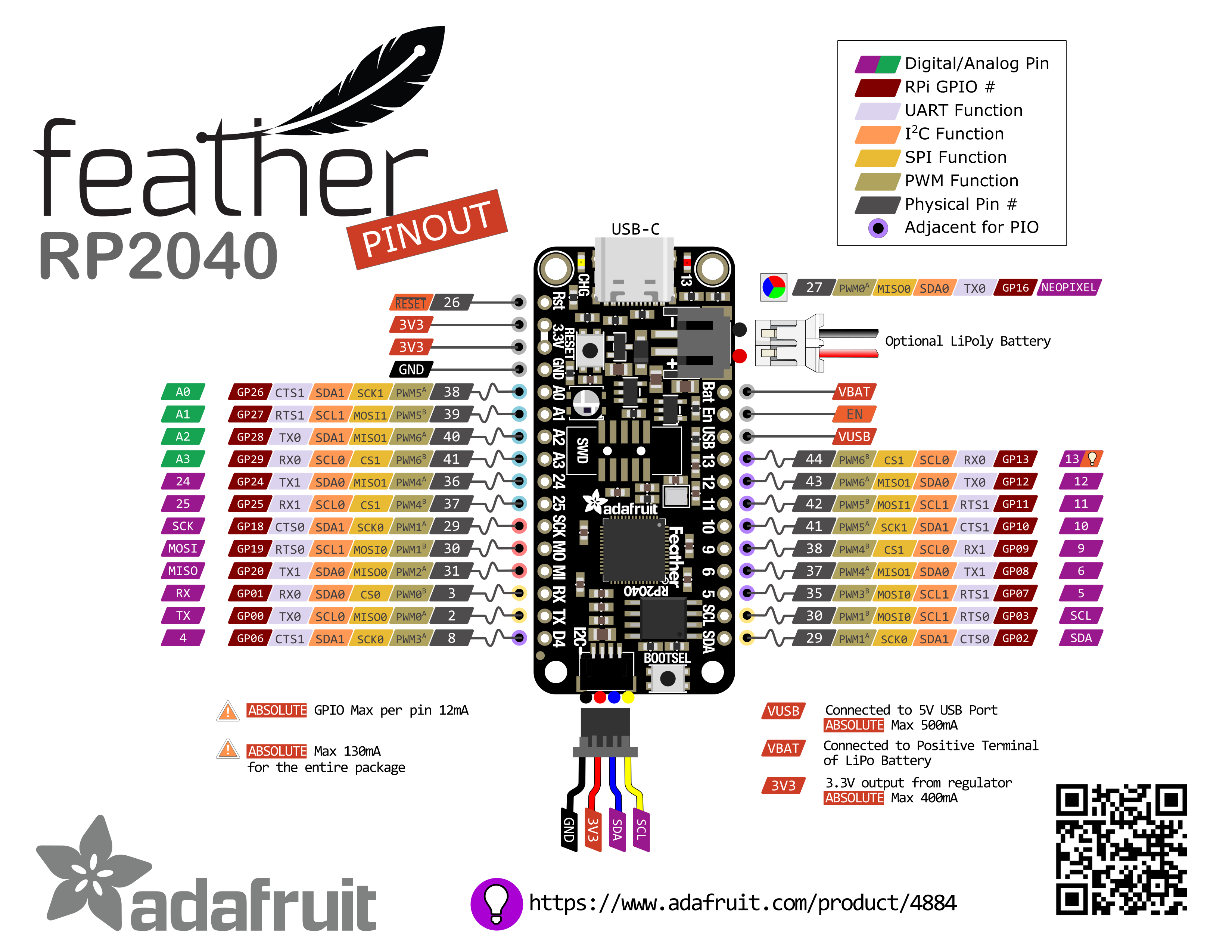
Where I work with the Adafruit Feather RP2040 (Feather), Mecrisp-Stellaris Forth (MSForth) and create Forth versions of ManPinTest and PinTest.
Sources
- Adafruit Feather RP2040
- Raspberry Pi RP2040 Getting Started
- RP2040 Datasheet
- Arm: Raspberry Pi RP2040: Our Microcontroller for the Masses
Background
This entry will be very similar to the one using the RP2040 and MicroPython, the difference will is I will use MSForth instead.
Getting Started
I’m going to assume that the serial connection, Forth installation and the ability to write/edit/run Forth programs on the RP2040 already exists. If not see this entry.
-
Mecrisp-Stellaris Forth: Notes
Where I compile interesting notes as to how Mecrisp-Stellaris Forth is implemented on the RP2040 microcontroller.
ALWAYS WRITE SHORT DEFINITIONS!!
I was working on this entry and was attempting to hand-write the definition of PIN_BLINK by keeping the stack in my head. As my definition approached over 10 albeit short lines, it continued to not work. This is when I remembered, Forth is designed to be easy to read and interactive, work with Forth, not against it!
-
Mecrisp-Stellaris Forth: On the RP2040
Where I implement Forth on the Feather RP2040 using Mecrisp-Stellaris Forth.
Sources
- Mecrisp Forth
- Mecrisp Forth Glossary
- Mecrisp Forth Dictionary
- Mecrisp Downloads
- Mecrisp-Stellaris Unofficial User Documentation
- Mecrisp General Discussion
- Pi Pico Memory Map for Forth
- Run Forth on Pico Video
Products
- Raspberry Pi Pico W
- Adafruit Feather RP2040
- USB to TTL Serial Cable - Debug / Console Cable for Raspberry Pi
- Lithium Ion Polymer Battery - 3.7v 1200mAh
How to Begin
(Follow directions based on your board)